
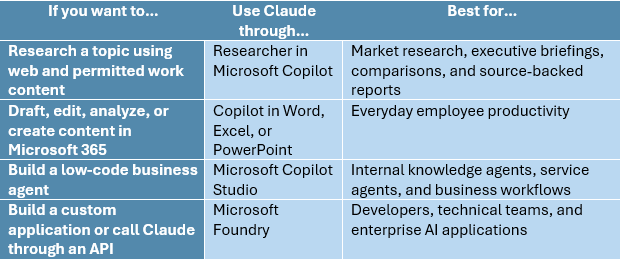
Claude can now be used in several parts of the Microsoft ecosystem. Depending on what you want to accomplish, you can select Claude inside Microsoft Copilot Researcher, use it while working in Word, Excel, or PowerPoint, choose it as the model for a Copilot Studio agent, or deploy it through Microsoft Foundry for a custom application.
There is no separate Microsoft product officially named “Microsoft Claude.” The phrase is commonly used to describe these Microsoft and Anthropic integrations. The useful question is not what the term means, but how your organization can use Claude with Microsoft tools.
This guide explains the available routes, the setup required for each one, and practical examples you can test.
Creating reminders directly from Teams conversations helps users stay organized and accountable.
💬 Try Abe, our smart Copilot Agent that helps you manage reminders, convert time zones, and quickly access important information right when you need it. Abe is built to simplify everyday tasks and keep you organized across Microsoft Copilot.
Four Ways to Use Claude with Microsoft
Before You Start: Review Anthropic Access in Microsoft 365
For organizational accounts, administrators should review the Anthropic configuration before users begin using Claude. Microsoft enables Anthropic models by default for many commercial-cloud customers, although defaults vary by region, tenant configuration, and service. Administrators should verify that the setting aligns with their organization’s security, compliance, and governance requirements.
An AI Administrator or Global Administrator can review the setting by:
- Signing in to the Microsoft 365 admin center.
- Navigating to Copilot → Settings → View all.
- Opening AI providers operating as Microsoft subprocessors.
- Reviewing the Anthropic configuration.
- Confirming whether Anthropic access should be enabled, restricted, or assigned to specific users or security groups.
If Claude will be used in Copilot Studio, administrators should also review the external-model controls available in the relevant Power Platform environment.
Organizations operating in the EU, EFTA, or United Kingdom should pay particular attention to Microsoft’s data-processing guidance. Anthropic model processing may occur outside the Microsoft EU Data Boundary, and regional defaults may differ from those used in other commercial-cloud environments.
1. How to Use Claude with Researcher in Microsoft Copilot
Researcher is the simplest option for users who want Claude to perform in-depth research using web sources and work content they are authorized to access.
Steps
- Sign in to the Microsoft Copilot app on the web or desktop.
- Under Agents in Chat, select Researcher.
- Open the model dropdown.
- Select Claude.
- Enter a detailed research prompt.
- Review the report, inspect its sources, and ask follow-up questions to refine the result.
Microsoft requires an eligible Microsoft Copilot license for model choice in Researcher. The administrator must also allow Anthropic models for the user.
Example Prompt for Competitor Research
Research the leading Microsoft Teams reminder applications for small and midsize businesses. Compare their automatic and manual reminder capabilities, pricing, deployment requirements, security considerations, and limitations. Use current primary sources, cite every product claim, and present the findings in a comparison table followed by a recommendation.
Claude in Researcher is most useful when the task requires structured analysis, comparison, synthesis, or a longer report rather than a quick chat response.
Example Prompt for an Executive Briefing
Create a two-page executive briefing on the business impact of Microsoft’s latest Copilot licensing changes. Separate confirmed facts from analysis, include source links, identify the teams most affected, and recommend five actions our organization should take during the next 60 days.
Claude in Researcher is most useful when the task requires structured analysis, comparison, synthesis, or a longer report rather than a quick chat response.
2. How to Use Claude in Word, Excel, and PowerPoint
Microsoft supports model choice in selected Copilot experiences inside Word, Excel, and PowerPoint. If Claude is available for your account, it appears in the Copilot model picker. You can also leave the picker on Auto and allow Copilot to select a model.
Use Claude in Microsoft Word
- Open a Word document and open Copilot.
- Open the model picker and select an available Claude model from the options provided in your Microsoft environment.
- Enter a prompt or select existing text that you want Copilot to revise.
- Review the draft before keeping or inserting it.
Available Claude models vary by Microsoft product, region, licensing, rollout stage, and release date. Organizations should expect model availability to evolve over time and avoid assuming that a specific Claude model will always be available.
Useful tasks include drafting a document from an outline, expanding a section, rewriting text for a specific audience, restructuring content, creating a table, and improving tone or clarity.
Example prompt:
Using the notes in this document, draft a client-ready implementation plan. Organize it into objectives, scope, responsibilities, timeline, risks, and next steps. Keep the language concise and professional, and do not add facts that are not in the source material.
Use Claude in Microsoft Excel
- Open the workbook and launch Copilot in Excel.
- Use the model picker in the upper-left corner of the Copilot pane.
- Select Claude.
- Name the worksheet, columns, or ranges you want it to analyze.
- Review proposed formulas, calculations, charts, and workbook changes before accepting them.
Example prompt:
“Analyze the Revenue, Cost, and Margin columns in the Sales worksheet. Identify the five largest month-over-month margin changes, explain the likely drivers using only the workbook data, and create a summary table. Do not modify the original data.”
For shared or sensitive workbooks, use version history and review any direct changes carefully. Microsoft notes that the selected model applies only to the active Excel session and returns to the default model when the session ends.
Use Claude in Microsoft PowerPoint
- Open PowerPoint and sign in to your Microsoft 365 account.
- Select Home → Copilot.
- Confirm that Copilot is in editing mode.
- Open the AI model switcher and select Claude.
- Ask Copilot to create, add, summarize, or refine slides.
If the model switcher is not visible in the chat box, check the Copilot settings menu. The model selection applies to the active session.
Example prompt:
Create a six-slide presentation for senior leadership using this document as the source. Include an executive summary, the current challenge, three recommended actions, implementation risks, and next steps. Keep each slide concise and add detailed speaker notes.
3. How to Build a Claude-Powered Agent in Microsoft Copilot Studio
Copilot Studio is the right route when you need a reusable business agent rather than a one-time response.
Before a maker can select Claude, administrators must:
- Review the Anthropic configuration in the Microsoft 365 admin center and ensure access is configured appropriately for the intended users and environments.
- Turn on external models for the relevant environment or environment group in the Power Platform admin center.
- Ensure the maker has access to the required Copilot Studio environment and licensing.
Use Claude in Microsoft PowerPoint
- Open the agent in Microsoft Copilot Studio.
- Navigate to the agent’s Overview page.
- Locate the Model section.
- Select an available Claude model.
- Save the changes.
The exact user experience may change as Microsoft continues to evolve Copilot Studio. Organizations should review current Microsoft documentation when configuring production environments.
Practical Agent Example
A company could build an internal policy assistant that:
- Uses approved SharePoint policy documents as its knowledge source.
- Answers employee questions in plain language.
- Provides links to the original policy.
- Asks clarifying questions when the request is ambiguous.
- Escalates sensitive HR or legal questions instead of inventing an answer.
Claude would act as the agent’s selected model, while Copilot Studio would provide the agent framework, knowledge connections, tools, channels, governance, and publishing controls.
💬 Forgot to reply? Abe will remind you.
Abe’s reply tracking automatically brings Teams messages back to your attention when they still need a response.
4. How Developers Can Use Claude Through Microsoft Foundry
Microsoft Foundry is designed for organizations that want to build a custom application, agent, or workflow with Claude.
Prerequisites
Organizations typically need:
- A supported Azure subscription
- A Microsoft Foundry project in a supported location
- Appropriate permissions to create and manage AI resources
- Azure Marketplace access
- Required billing configuration for the selected deployment option
Eligibility requirements, supported regions, and deployment capabilities can change over time. Microsoft also documents certain regional and subscription restrictions, including exclusions that may apply to some Enterprise Accounts in South Korea. Organizations should review the latest Microsoft guidance before planning production deployments.
Deploy a Claude Model
- Sign in to Microsoft Foundry at ai.azure.com.
- Confirm that the new Foundry experience is enabled.
- Select Discover, then select Models.
- Choose an available Claude model and review its model card.
- Select Deploy → Custom settings.
Depending on the selected model and version, Claude may be hosted on Anthropic infrastructure or Azure-hosted infrastructure. This distinction can affect deployment options, residency considerations, lifecycle status, available capabilities, and applicable terms. Organizations should review the model card carefully before deployment.
6. Review and accept the applicable Azure Marketplace terms.
7. Choose the available deployment and hosting options presented for the selected model, review the associated requirements, and provide a deployment name.
8. Select Deploy.
9. Test the deployment and record its endpoint, deployment name, and authentication settings.
After deployment, applications can call Claude through the Anthropic Messages API using Microsoft Entra ID or an API key, depending on the selected model and configuration.
Microsoft documents the Foundry base URL in this format:
https://services.ai.azure.com/anthropic
The Messages API endpoint follows this format:
https://services.ai.azure.com/anthropic/v1/messages
Microsoft Entra ID is usually the stronger choice for enterprise authentication because it avoids storing a static API key in application code.
Teams should apply least-privilege access, store secrets securely when keys are required, monitor consumption, and test model behavior before production use.
Which Microsoft Claude Option Should You Choose?
Choose Researcher when an employee needs a detailed, source-backed research report.
Choose Word, Excel, or PowerPoint when Claude should help directly with documents, spreadsheets, or presentations.
Choose Copilot Studio when the organization needs a governed, reusable low-code agent connected to business knowledge and tools.
Choose Microsoft Foundry when developers need APIs, custom application logic, authentication control, deployment configuration, or integration with enterprise systems.
Many organizations will use more than one route. For example, employees may use Claude in Word and Researcher while a technical team builds a specialized service agent in Copilot Studio or Foundry.
Troubleshooting: Why Can’t I See Claude?
If Claude does not appear in a model picker, check the following:
- Admin settings: Confirm that Anthropic is allowed in the Microsoft 365 admin center.
- User assignment: Verify that your account or Microsoft Entra ID security group has access.
- Copilot Studio controls: Confirm that external models are allowed in the Power Platform environment.
- License: Check that the user has the license required for model choice in that product.
- Region and cloud: Claude is not available in every Microsoft cloud or region.
- Application and platform: Update the Microsoft 365 app and confirm that the feature is supported on the version and platform you are using.
- Rollout status: Some features are released gradually and may not yet have reached every tenant.
- Session behavior: Some Microsoft 365 apps return to Auto or the default model when the active session ends.
Security and Governance Questions to Review
Before enabling Claude, administrators should confirm:
- Which users and groups need access.
- Which supported experiences will use Anthropic models.
- Whether the selected model operates with Anthropic as a Microsoft subprocessor.
- Whether separate terms or data-retention conditions apply to the selected model.
- Whether cross-region processing applies.
- Which data employees are permitted to use.
- How outputs will be reviewed for accuracy, confidentiality, and compliance.
- How usage, cost, adoption, and business value will be measured.
Microsoft notes that model terms and data-processing arrangements can vary. Administrators should review the terms presented for the exact Microsoft service and Claude model being enabled rather than applying one assumption to every Anthropic integration.
This approach is faster and more intuitive than traditional task creation methods.
💡Add Central Links and other Dalikoo productivity apps like Celebrations and New Hires right from the Microsoft Marketplace to boost your Microsoft Copilot and Teams experience.
Our tools improve collaboration, automate steps, and help teams work faster with less effort.
Frequently Asked Questions
Is Microsoft Claude a Separate Product?
No. “Microsoft Claude” and “Claude Microsoft” are informal phrases used when people are looking for ways to use Anthropic’s Claude models through Microsoft products.
The actual experience may be Microsoft Copilot, a Microsoft 365 app, Copilot Studio, or Microsoft Foundry.
Can I Use Claude Directly Inside Microsoft 365 Apps?
Yes. Model choice is available in supported Copilot experiences in Word, Excel, and PowerPoint for eligible users.
Availability depends on licensing, tenant configuration, region, app version, and rollout status.
Can I Use Claude in Microsoft Teams or Outlook?
Do not assume that the Claude model picker is available in every Microsoft 365 application.
Microsoft currently documents model choice in Researcher and selected experiences in Word, Excel, and PowerPoint. Check the current product documentation and your tenant before promising support in Teams, Outlook, or another app.
Can I Use Claude to Build a Microsoft Copilot Agent?
Yes. Copilot Studio allows makers to select supported Anthropic models for eligible agents after the required Microsoft 365 and Power Platform admin controls are enabled.
Can Developers Call Claude Through Azure?
Yes. Developers can deploy supported Claude models in Microsoft Foundry and call them through the Anthropic Messages API using Microsoft Entra ID or API-key authentication, depending on the model and deployment configuration.
Hosting options can vary by model version, service availability, region, and deployment type. Organizations should review the model card and deployment documentation for the specific Claude model they intend to use.
Should We Enable Claude for Everyone Immediately?
Not necessarily. Begin with a defined pilot group and a small number of approved use cases.
Compare output quality, accuracy, speed, cost, security requirements, and business value before expanding access.
Start with a Controlled Claude and Microsoft Pilot
Using Claude with Microsoft is no longer limited to a general discussion about model choice. Organizations can put it to work in research, documents, spreadsheets, presentations, low-code agents, and custom applications.
The best starting point is a controlled pilot: enable the correct settings, choose one measurable business scenario, train a small user group, review data requirements, and compare results before scaling.
Dalikoo helps organizations review Microsoft Copilot readiness, configure secure access, identify practical AI use cases, and plan governed pilots across Microsoft 365, Copilot Studio, and Microsoft Foundry.
Learn more about Microsoft Copilot implementation with Dalikoo or contact our team to discuss how Claude can fit into your Microsoft environment.
This approach is faster and more intuitive than traditional task creation methods.